SUMMARY
- Where to find the Statistics page ?
- Use widgets to adapt the statistics displayed on the screen
- Step 1 : Choose the perimeter to follow from the perimeter selection menu
- Step 2 : Choose the duration you want to analyze or track
- Step 3 : Display statistics by type (criticality, status, alert categories)
Where to find the Statistics page ?
The statistics page is accessible from the Advanced statistics menu of the Serenety module :
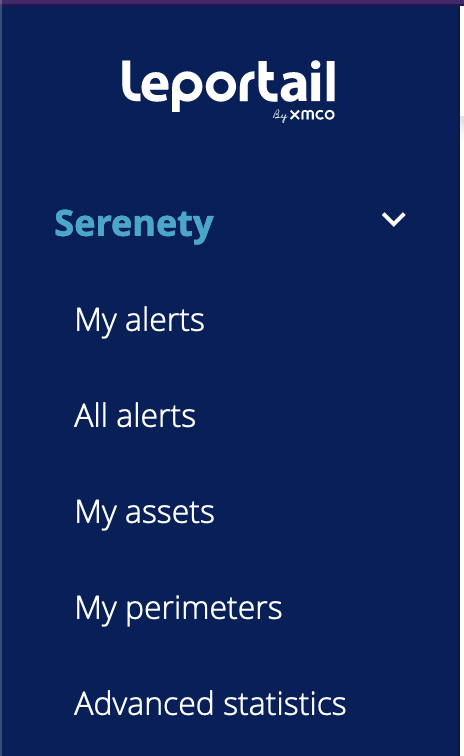
From this interface, you can access the page below :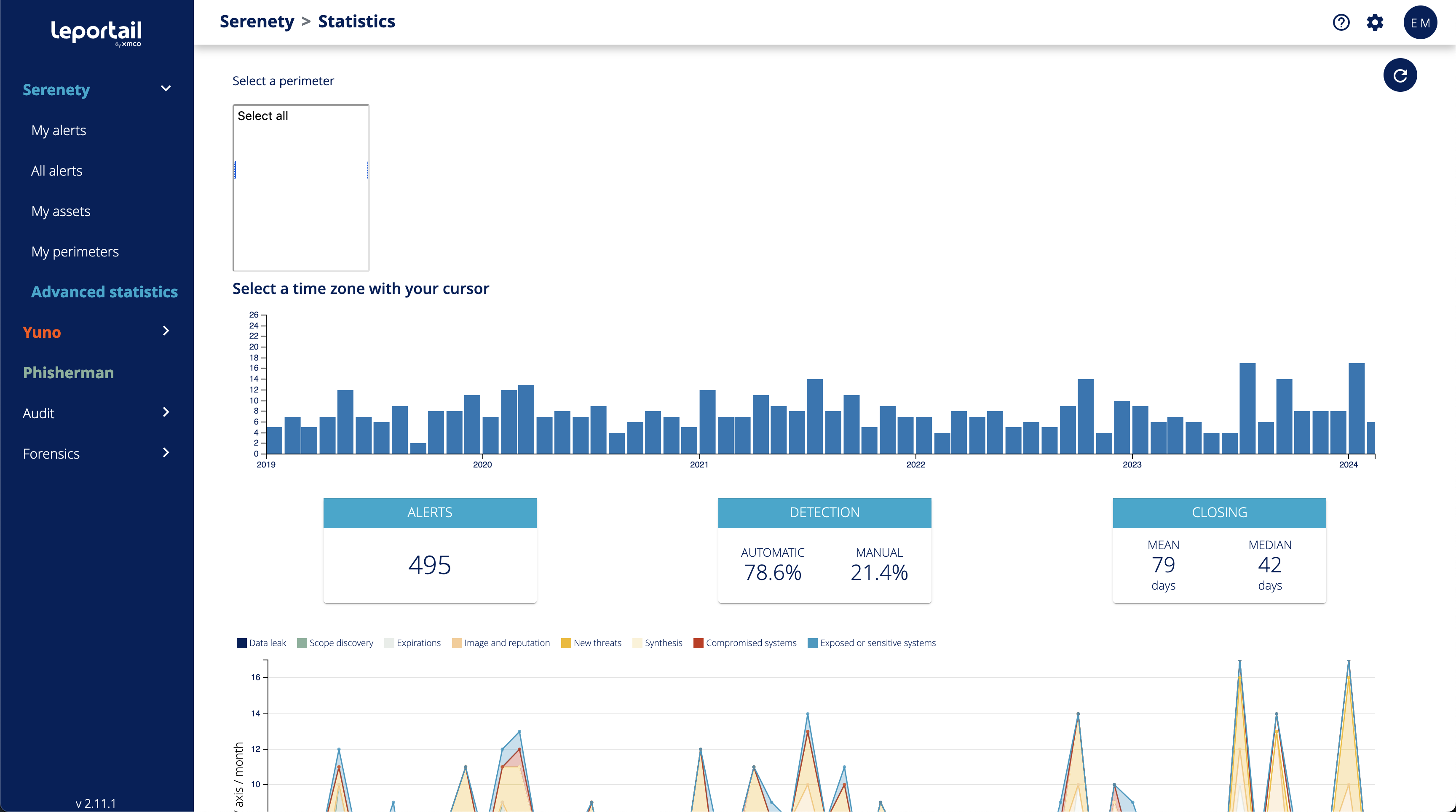
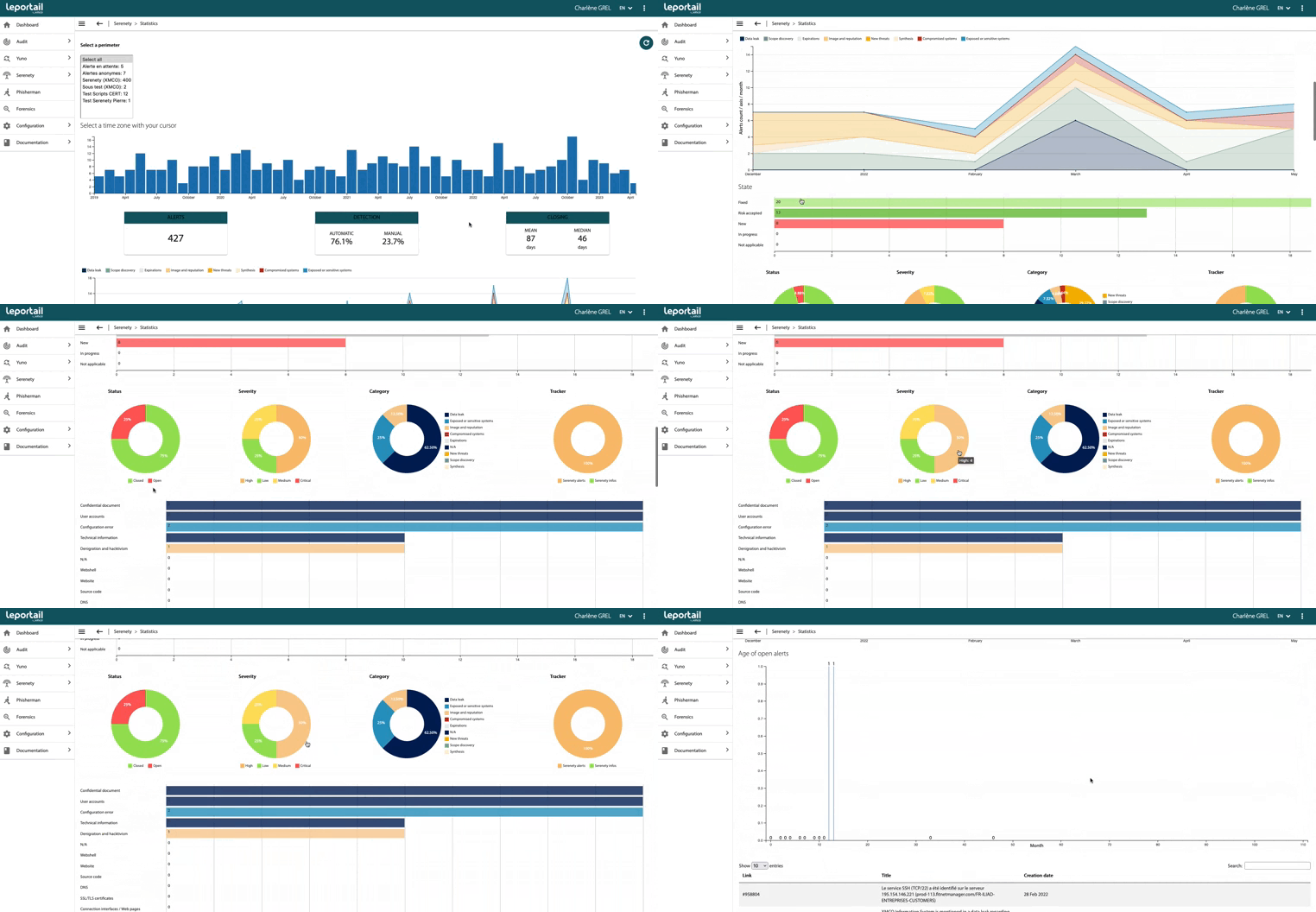
In particular, you will find :
- a menu offering a choice of areas under surveillance
- a monthly graph showing the number of alerts sent to you since the beginning of your subscription to the service
- 3 inserts showing the main statistics of your monitoring (number of alerts since you subscribed to the service, types of detection, duration of alert closure)
What's a Serenety perimeter ?The perimeters represent a set of elements that you define yourself. They can be based on your real business perimeters (France perimeter, Europe perimeter for example) or on fictitious perimeters (team A, team B, etc.). The interest of the perimeters is to be able to follow the activity of a set of assets or of a team for example.
Use widgets to adapt the statistics displayed on the screen
The statistics of the Serenety module are numerous and the widgets on the page allow you to adapt them in a granular way.
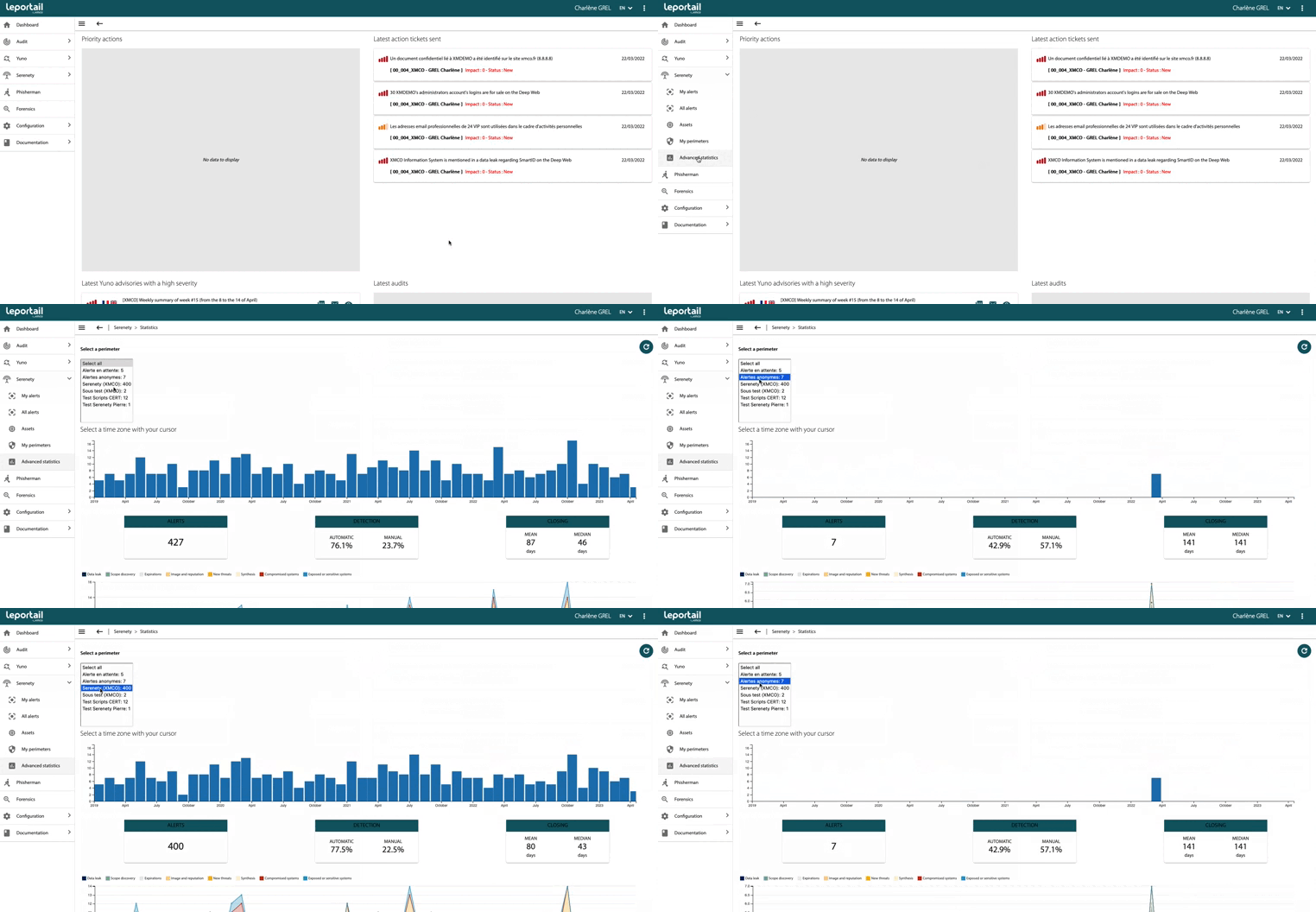
In the selection menu, you will find the list of monitored perimeters for which you have read or write rights :
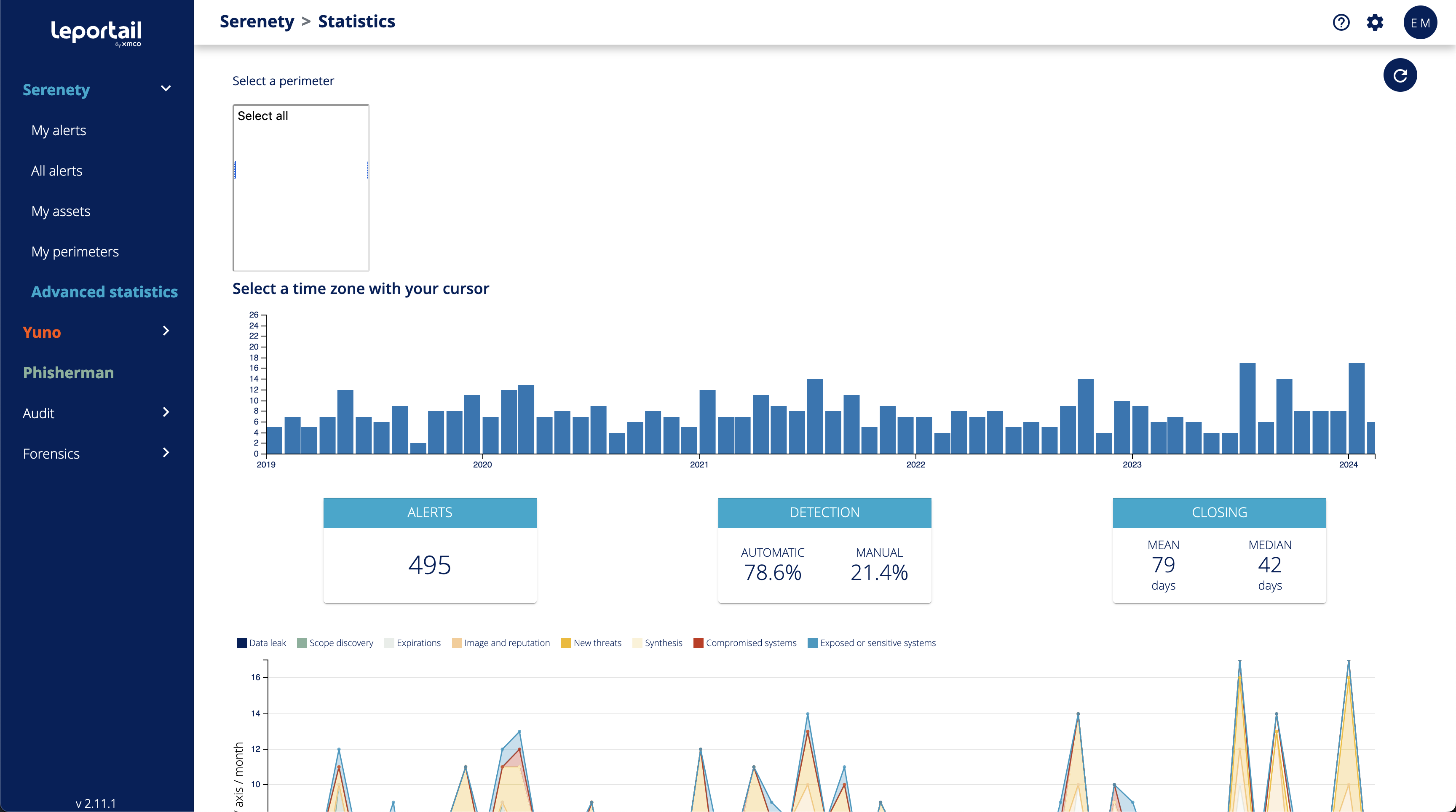
Step 1 : Choose the perimeter to follow from the perimeter selection menu
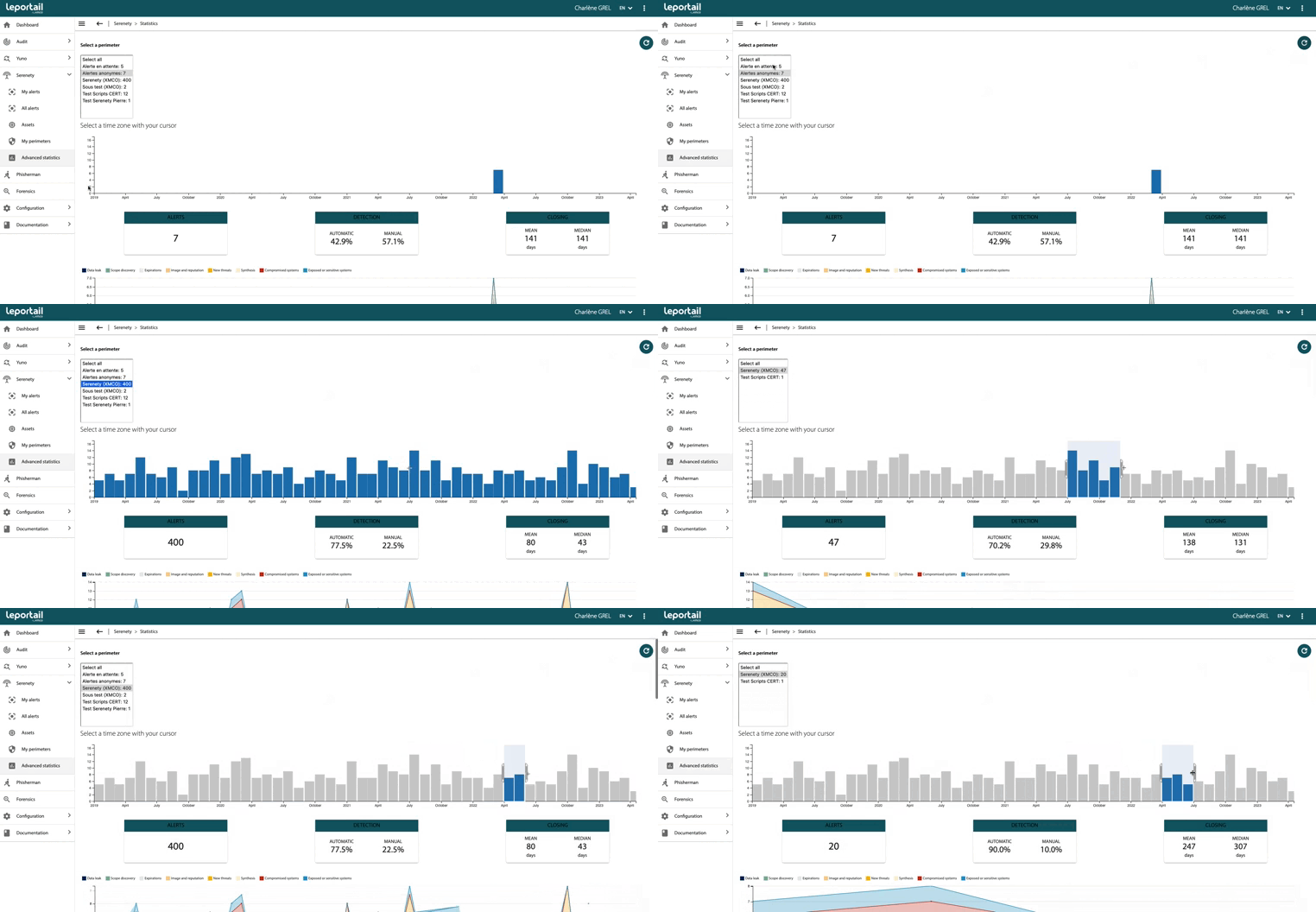
Step 2 : Choose the duration you want to analyze or track
Step 3 : Display statistics by type (criticality, status, alert categories)