
SUMMARY
- Step 1 : Create an application group
- Step 2 : Configure the redirect URI
- Step 3 : Generate a shared secret
Support for authentication with the OpenID Connect protocol is only available from Windows Server 2016 AD FS.
Step 1 : Create an application group
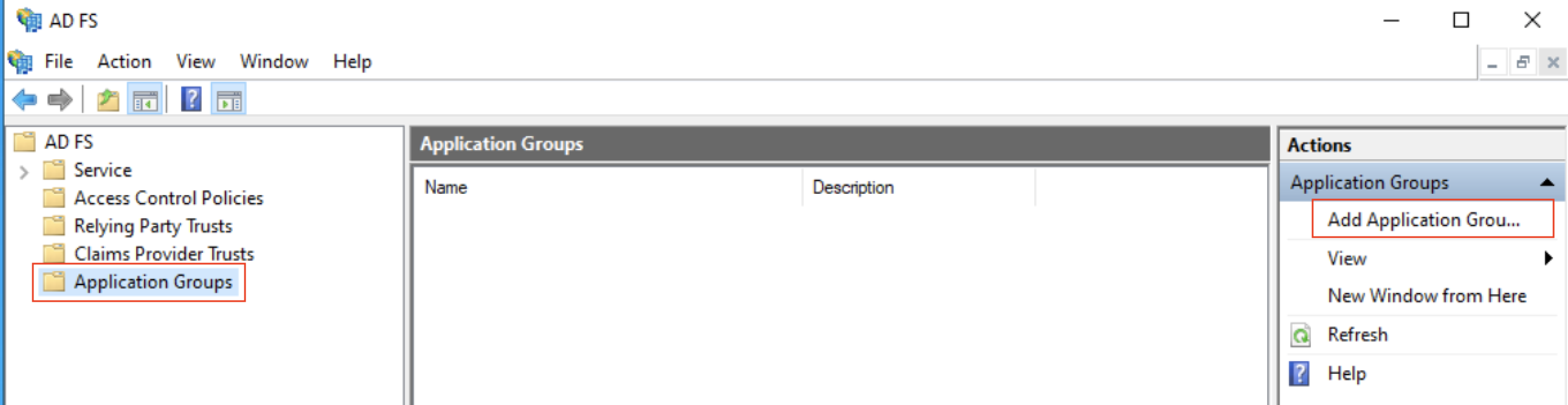
- In the AD FS administration console, navigate to the Application Groups menu
- Click on Add Application Group
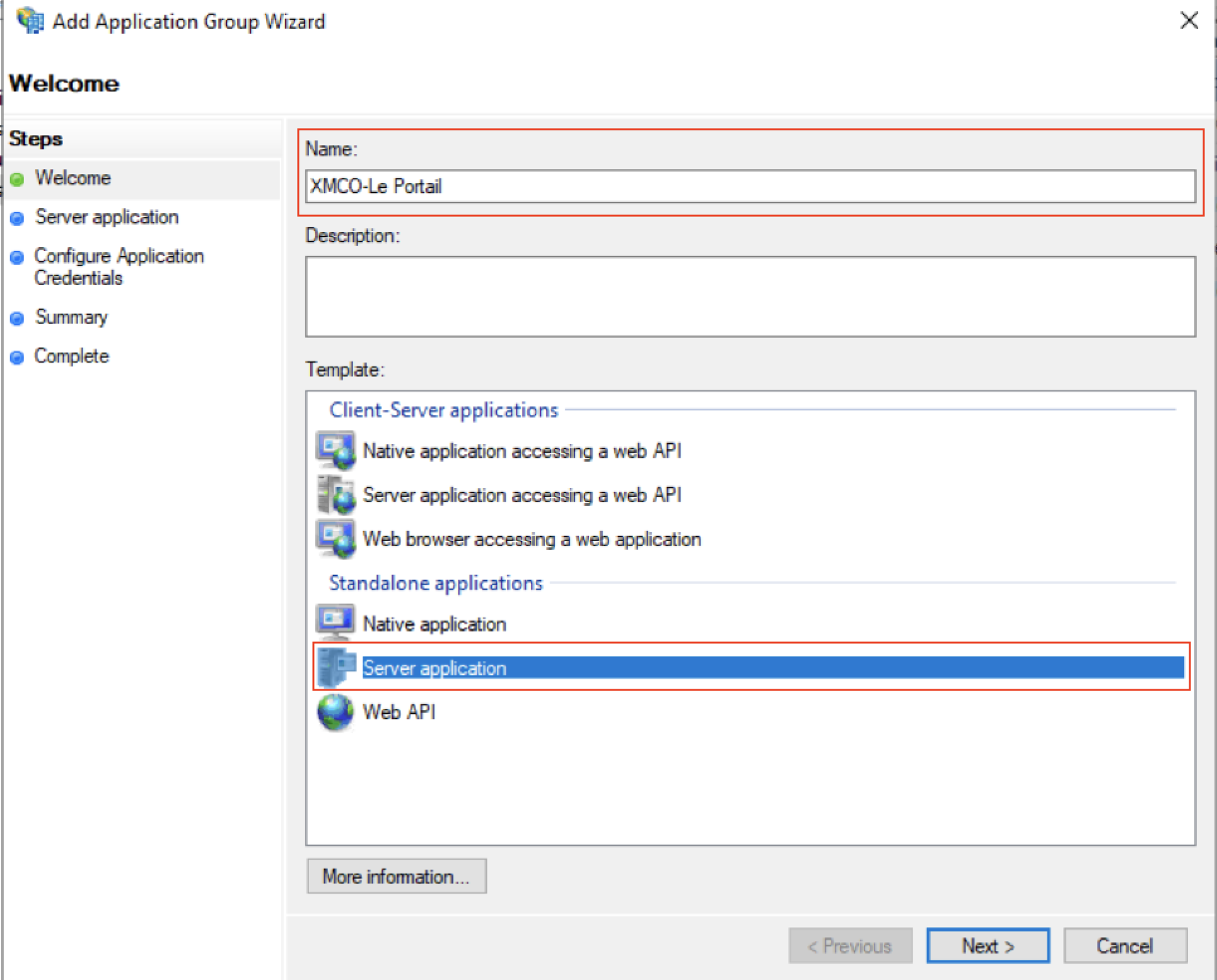
- Enter the name of the application, for exemple XMCO-Le Portail
- Select the Standalone applications Server application
- Click on Next
Step 2 : Configure the redirect URI
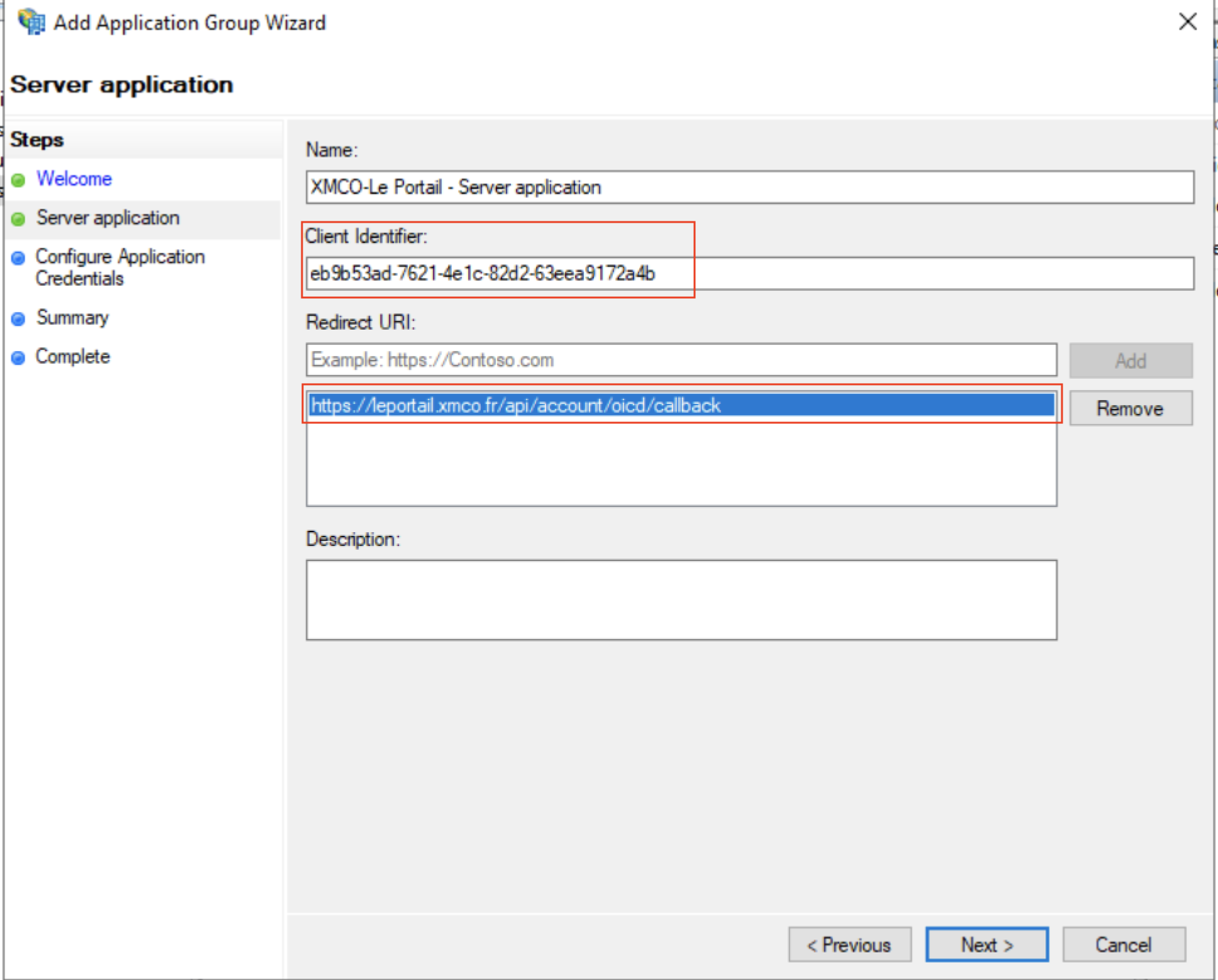
- Noter the value of the field Client Identifier. This is the Client ID that you will have to provide to our teams.
- Enter the URL https://leportail.xmco.fr/api/account/oicd/callback in the Redirect URI section
- Click on Next
Step 3 : Generate a shared secret
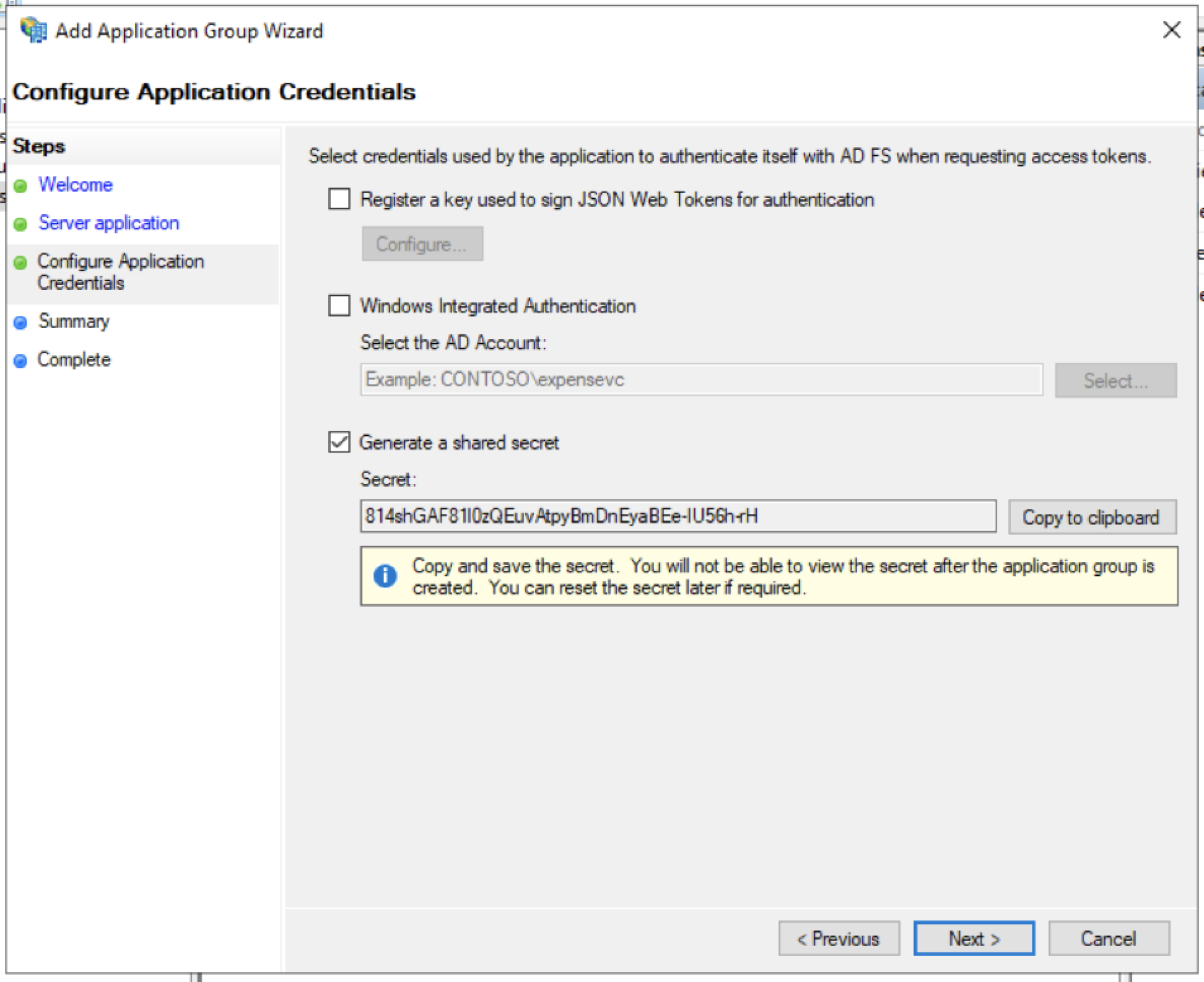
- Check the Generate a shared secret option
- Copy and note the value of the field Secret. This is the Client Secret that you will have to provide to our teams.
This secret will not be displayed afterwards, so make sure to note it !
- Click on Next and finish the creation process.
Our teams will also need the Server Metadata URL. This will have the following form : https://votre-domaine-adfs.com/adfs/.well-known/openid-configuration